When a keyword is generating consistent orders at an acceptable ACOS, changing its bid may not be necessary. You can use a protective Bidding Rule to keep its bid unchanged while it meets your performance criteria.
Why Protect Good Keywords?
When a keyword is generating consistent orders at an acceptable ACOS, changing its bid may not be necessary. You can use a protective Bidding Rule to keep its bid unchanged while it meets your performance criteria.
There are two ways to do this:
Use the preset Do Nothing rule to protect keywords that meet predefined performance thresholds.
Create a custom Bidding Rule with your own criteria and a fixed bid adjustment of $0.
Option 1: Use the Preset "Do Nothing" Rule
The Do Nothing Bidding Rule is designed to leave bids unchanged for keywords that meet these performance conditions:
Conversion rate ≥ 30%
Orders ≥ 20
ACOS between 30% and 40%
All three conditions must be met for the keyword to qualify.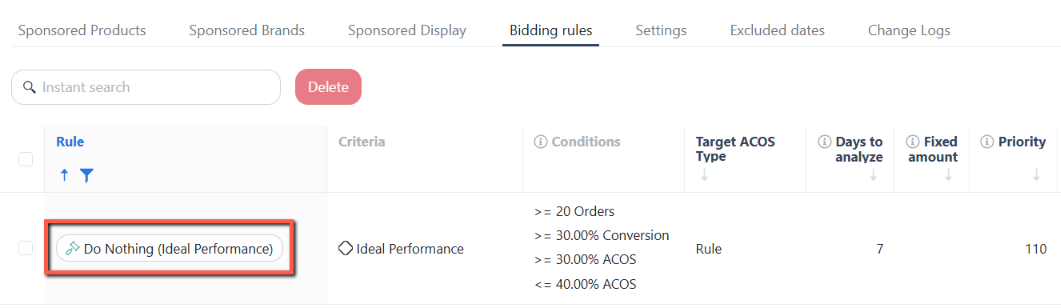
Example: A keyword has a 35% conversion rate, 25 orders, and 24% ACOS. Because it meets all three conditions, the Do Nothing rule can prevent its bid from being adjusted.
How to Use the Preset Rule
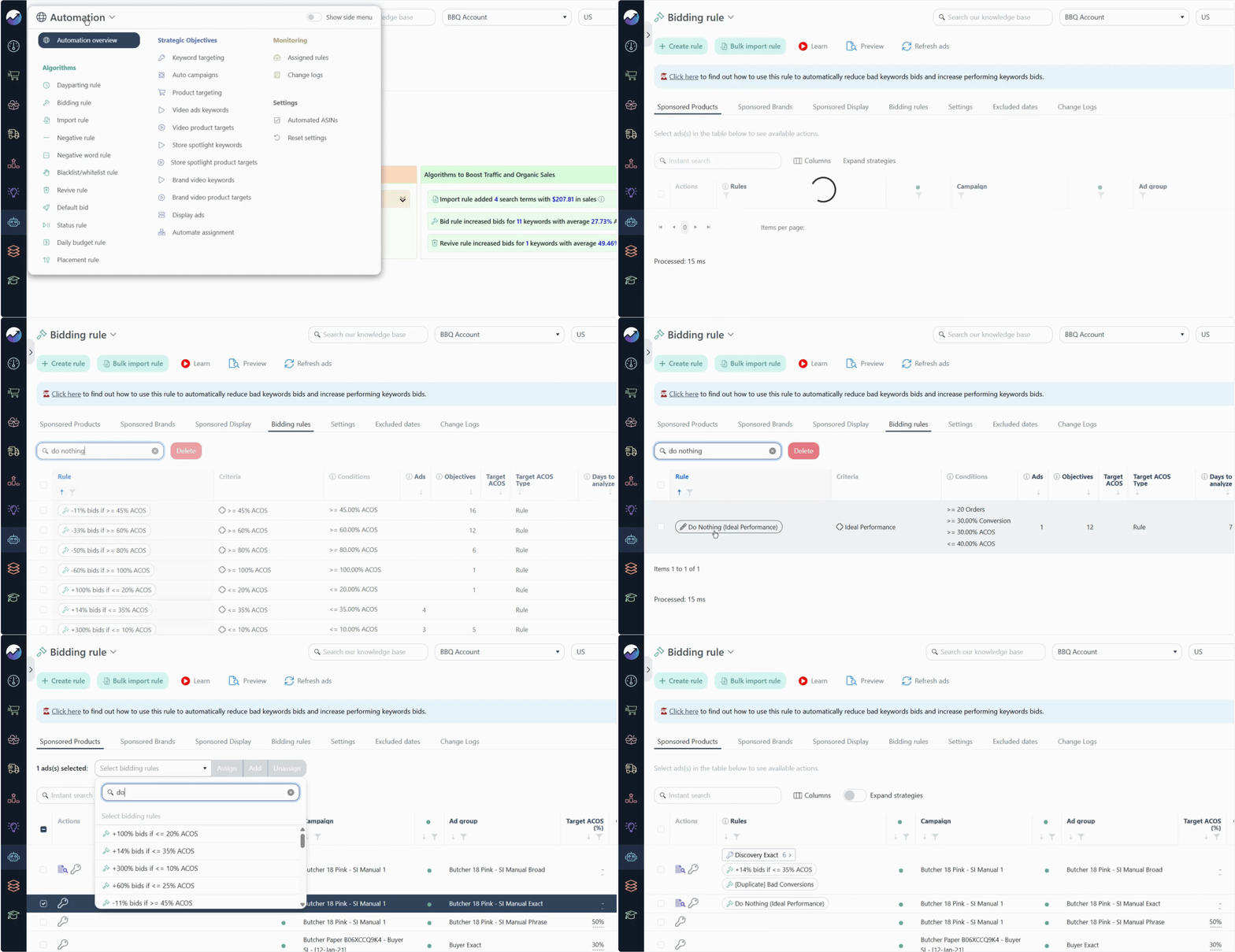
Go to Automation > Bidding Rule.
Locate the preset Do Nothing rule.
Review its trigger conditions and confirm that they match the performance thresholds described above.
Check the rule's priority and ensure it takes precedence over rules that would otherwise adjust the qualifying keyword's bid.
Assign the rule to the relevant ad group or include it in the applicable Strategic Objective, as appropriate for your setup.
Review the configuration before applying it.
Option 2: Create a Custom Rule
Use a custom Bidding Rule if you want to protect keywords using different performance thresholds.
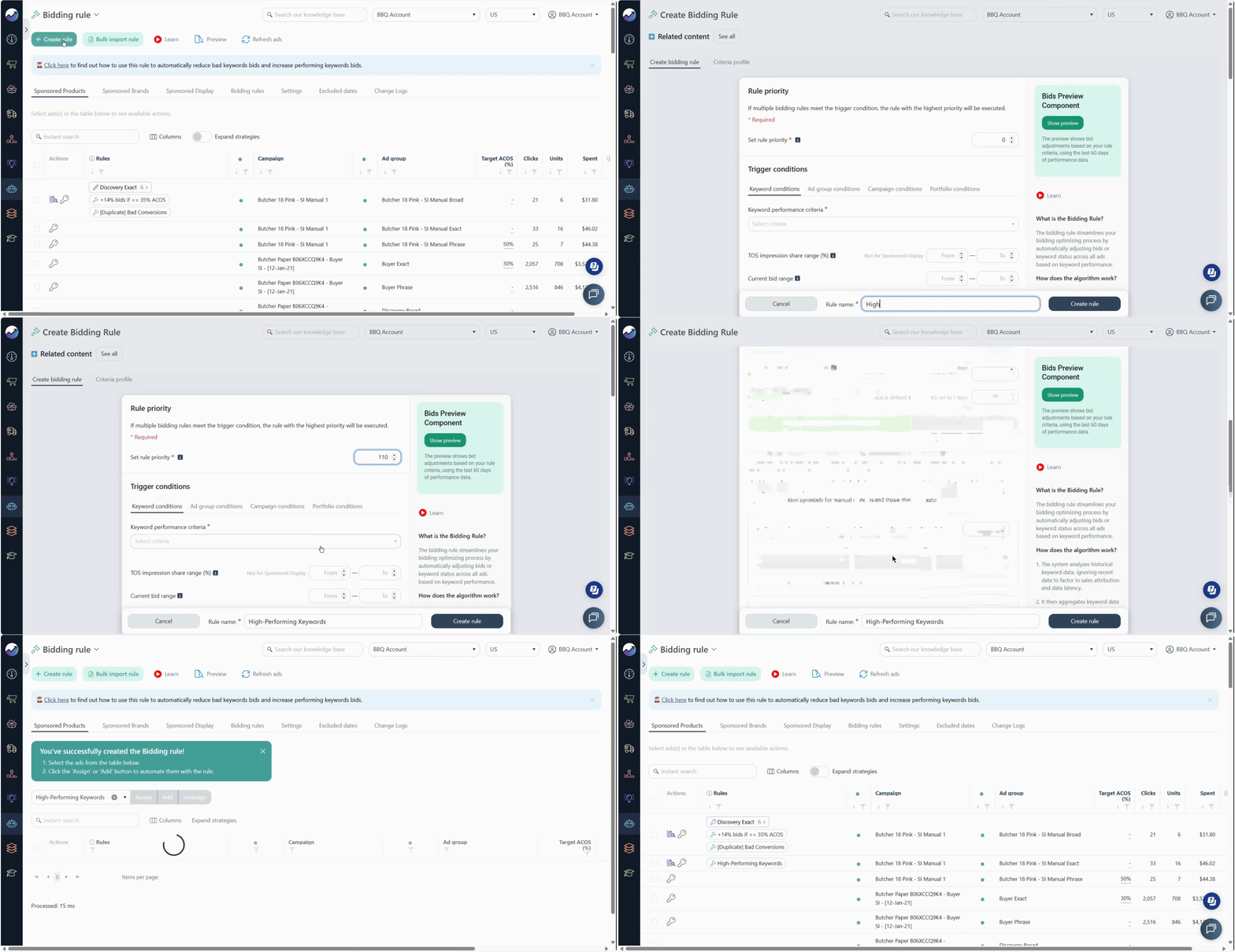
1. Create a Bidding Rule
Go to Automation > Bidding Rule and create a rule with trigger conditions that identify high-performing keywords
For example, you could target keywords with at least 100 orders and a conversion rate of 20% or higher. Adjust these criteria to suit your advertising goals.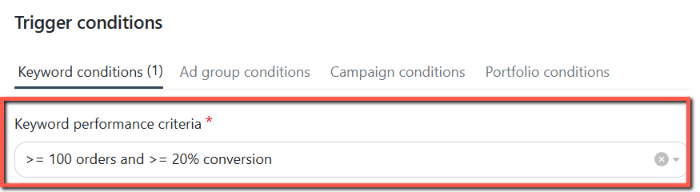
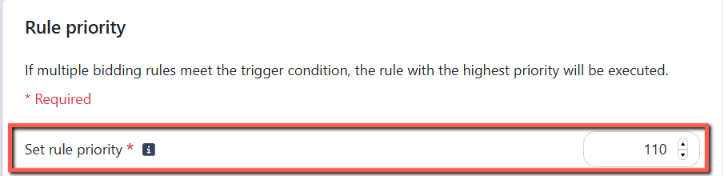
2. Set a High Priority
Give the protective rule a higher priority than the other Bidding Rules that could change the bids of those keywords.
This allows Scale Insights to evaluate the protective rule before lower-priority rules when multiple rules match.
3. Set the Bid Adjustment to $0
In the rule's action settings, select Fixed Amount and set the bid adjustment to $0.
This prevents the rule from increasing or decreasing the bid when its trigger conditions are met.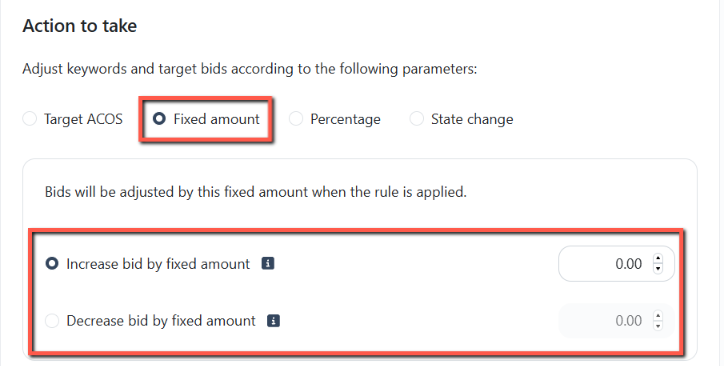
4. Assign and Review the Rule
Assign the rule to the relevant ad group or include it in the applicable Strategic Objective. Review the rule's conditions, priority, and action to make sure it behaves as intended.
Note
The preset or custom rule's action will not appear in the Change Logs because it does not make any changes to the keyword's bid or status. Since no adjustments are applied, there is no change to record.What Happens If a Keyword's Performance Changes?
What Happens If a Keyword's Performance Changes?
The protective rule applies only while the keyword meets its trigger conditions. If performance declines and the keyword no longer qualifies, another applicable Bidding Rule may adjust its bid.
For example, if a keyword's conversion rate falls below the threshold, the protective rule may no longer apply. A lower-priority rule that matches the keyword can then optimize its bid according to your strategy.
Review your criteria periodically to ensure they still reflect your advertising goals.