New Features
1. Automation: Bulk Manage (Beta)
You can now manage your entire automation setup from a single page using Bulk Manage. Update rule and Strategic Objective settings and assignments, criteria profiles, and general algorithm settings. You can also filter by ASIN to focus on specific products.
Bulk Manage consolidates existing bulk automation tools into one place and introduces the ability to create and edit Strategic Objectives in bulk.
Navigation: Automation > Bulk Manage
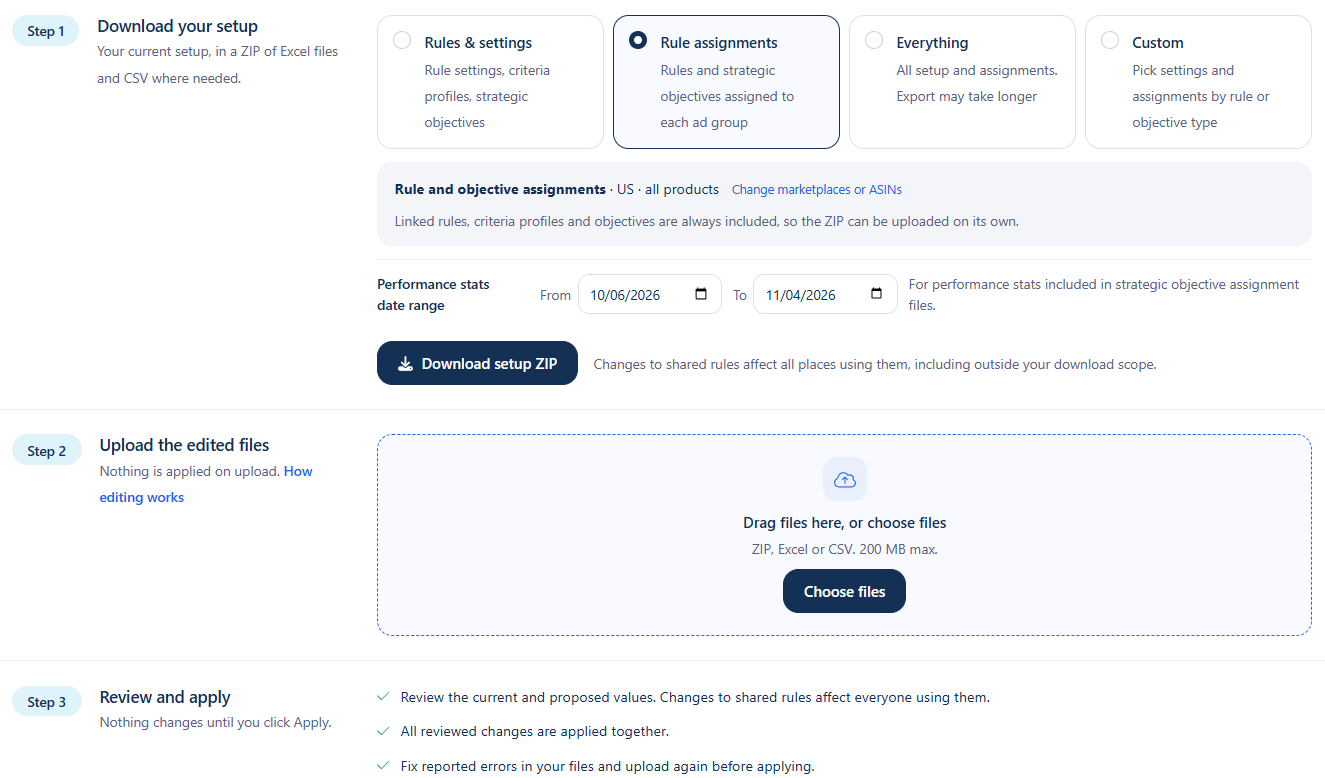
How it works:
- Download the sections you want to update as a ZIP file containing Excel files (and CSV files where applicable).
- Edit the downloaded files in Excel.
- Upload your updated files in ZIP, Excel, or CSV format (up to 200 MB). Uploading does not automatically apply changes.
- Review the proposed changes and click Apply to confirm.
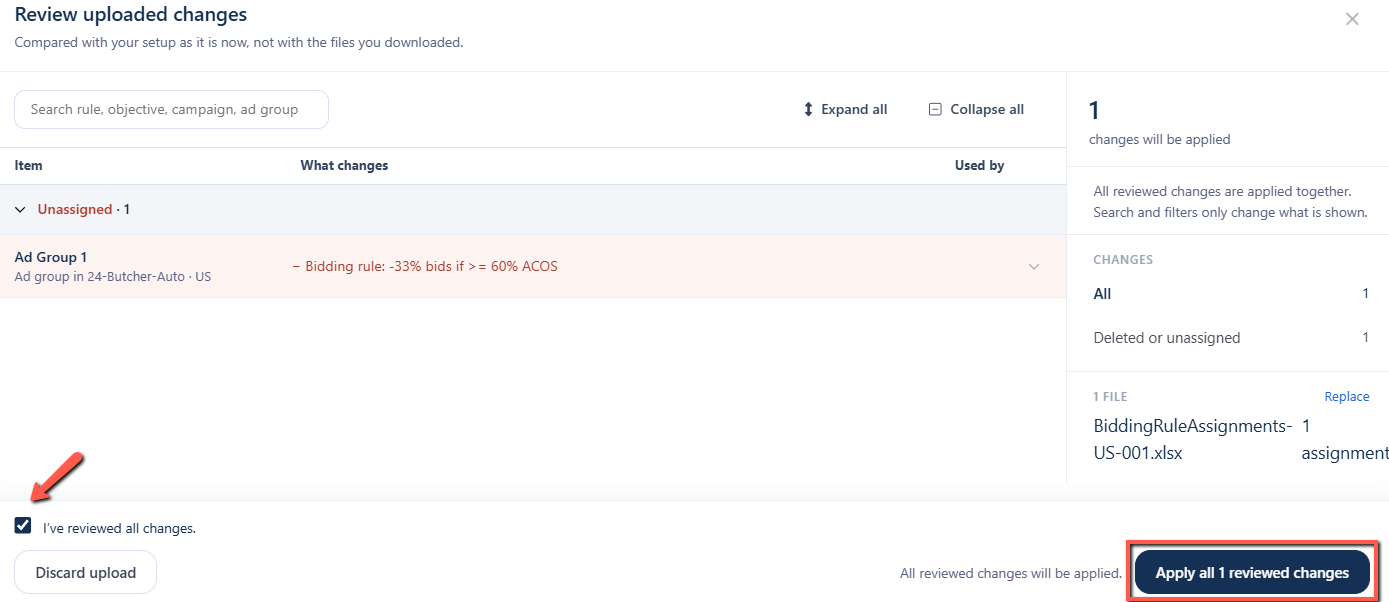
Before applying, you can compare current and proposed values. All reviewed changes are applied together. Any errors must be corrected in the files and re-uploaded before proceeding.
Important notes:
- To delete or unassign an item, set Delete & Unassign to Yes. Simply removing a row from the file will not delete or unassign it.
- Changes to rules shared across ad groups apply everywhere those rules are used, including ad groups outside your download scope.
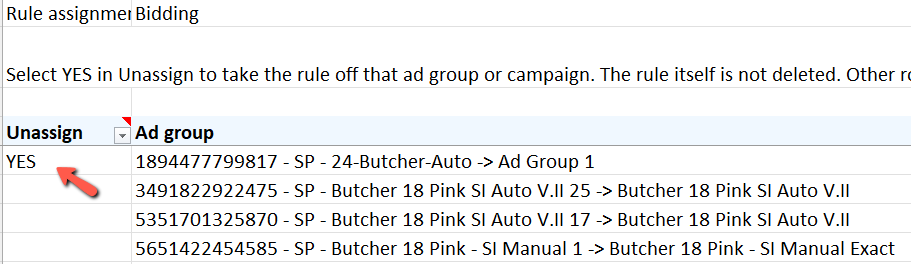
Learn more: How to Use Bulk Manage for Automation Settings
2. Keyword Ranking: Custom Keyword Tags
Keyword Ranking now supports custom tags, allowing you to organize tracked keywords into categories and quickly filter the ones you want to monitor.
Create account-level tags with custom names and colors, then apply multiple tags to any keyword.
To assign tags, click +Tag in the keyword's Tags column, select or deselect the tags in the popover, and click Save to apply your changes.
Navigation: Keyword ranking
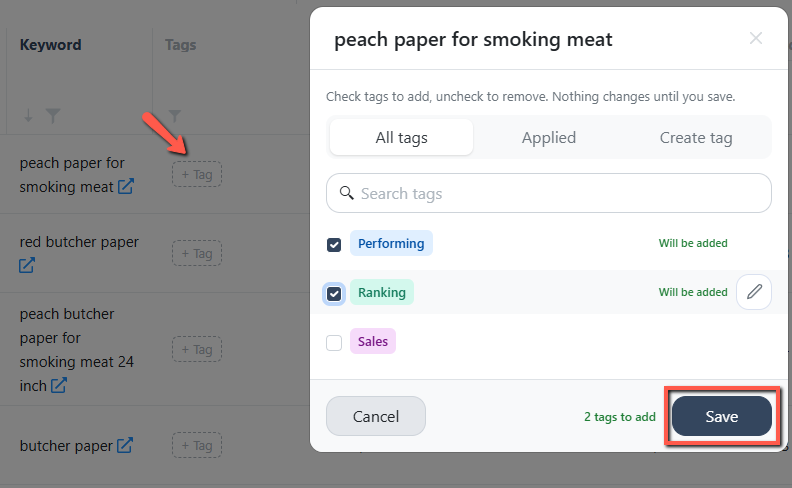
Note: A maximum of 50 tags can be created per account.
Learn more: How to Create and Manage Custom Keyword Tags
3. Import Rule: Maximum Keyword Limit per Ad Group
Import Rule now supports a maximum keyword limit for destination ad groups, helping you maintain your preferred campaign structure and prevent ad groups from becoming overcrowded.
To enable it, select "Do not execute if the destination ad group exceeds the keyword limit" and enter a value in the "Max keywords" field.
Once the limit is reached, the rule stops importing additional keywords into that ad group.
Navigation: Automation > Import rule
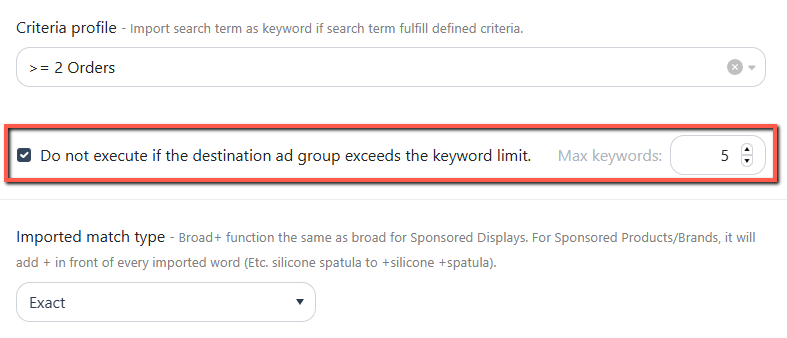
How it works:
- Set a maximum of 1–1,000 keywords per ad group.
- Enabled, disabled, and paused keywords count toward the limit. Archived keywords are excluded.
- Example: If an ad group has 4 keywords, the limit is 5, and the rule identifies 10 candidates, only 1 keyword will be imported.
Note: Limits are evaluated independently for each rule, even when multiple rules target the same ad group.
For example, if Rule A has a limit of 5 and Rule B has a limit of 20, an ad group with 18 keywords will be skipped by Rule A but can receive up to 2 additional keywords from Rule B.
Learn more: How to Limit Keyword Imports per Ad Group
4. Main Dashboard: KPI Chart With Automation Action Markers
The Main Dashboard now displays automation action markers alongside your KPI trends, helping you identify how changes to rule and Strategic Objective assignments or settings align with shifts in performance.
What's new:
- Custom tab: Now the first tab in the chart section. Choose preset metric combinations or select up to 5 metrics to compare, such as Organic Units, Profits, and Refunds.
- Flexible time views: Switch between Days, Weeks, and Months to adjust how data is grouped. Days is the default.
- Action markers: Hover over a period to view metric values and the number of rules or Strategic Objectives assigned or edited during that period.
Navigation: Main Dashboard
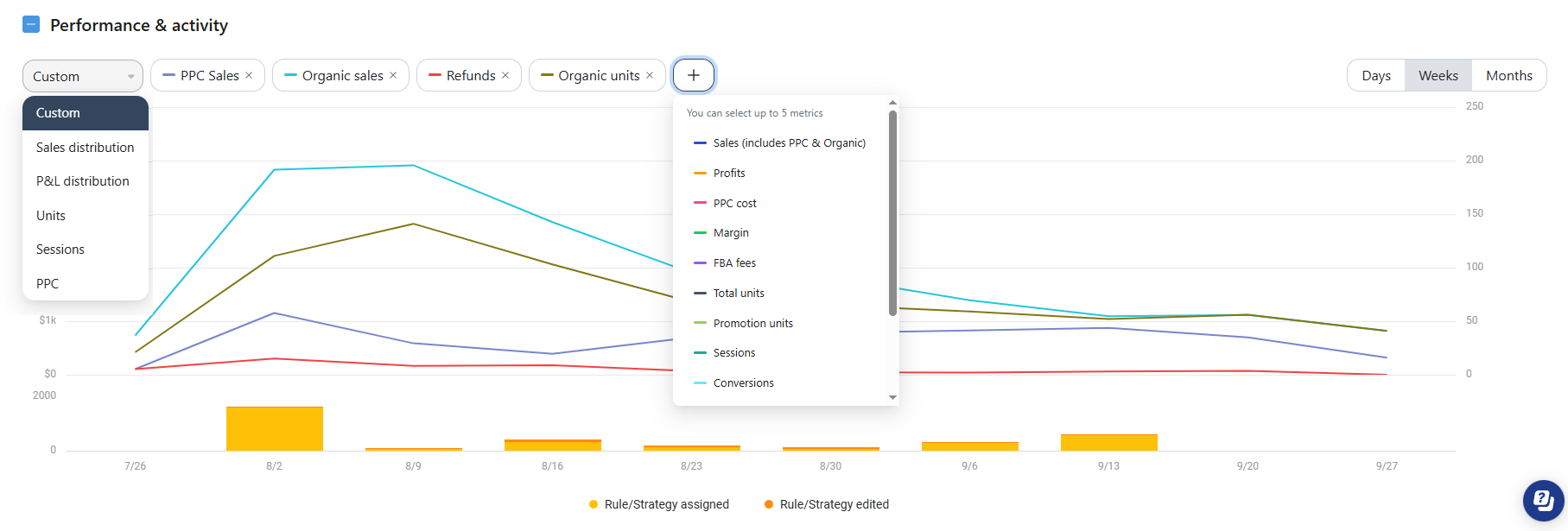
Hover over a period to see its metric values along with the number of rules or Strategic Objectives assigned and edited.
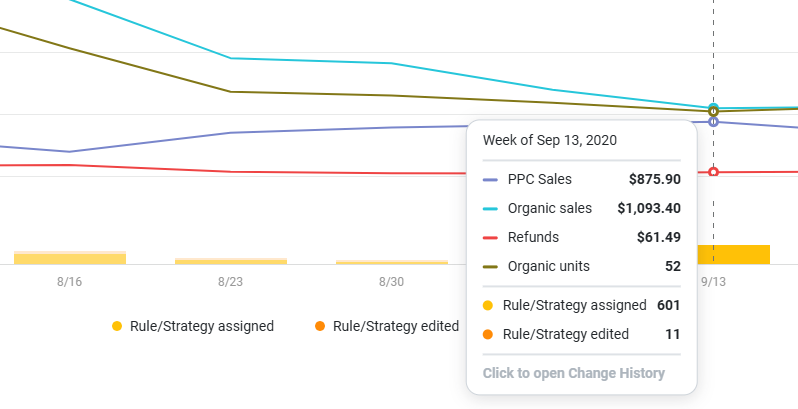
From the chart, you can:
- Click an action marker to open Manual Change History, filtered to the selected date, week, or month.
- Click See ad groups in the change history to view the ad groups currently assigned to the selected rule or Strategic Objective.
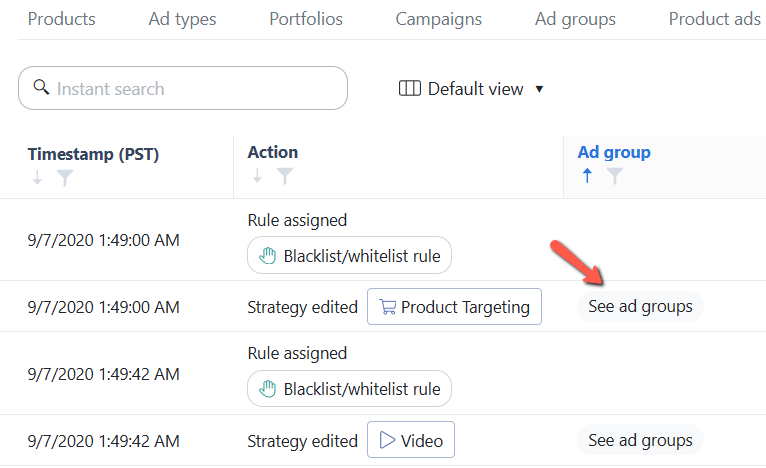
Note: Action markers track rule and Strategic Objective assignments and edits only.
5. Main Dashboard: Action Log and Automation Prompts
We've added an Action Log to the Main Dashboard, featuring a banner that displays the amount of money and time saved through automations. It also highlights what's missing and guides you through getting started, so you can activate your first automation or add more.
The banner also provides a link to Scale Optimizer suggestions, making it easier to review recommended optimizations and identify your next steps for improving performance.
Navigation: Main Dashboard
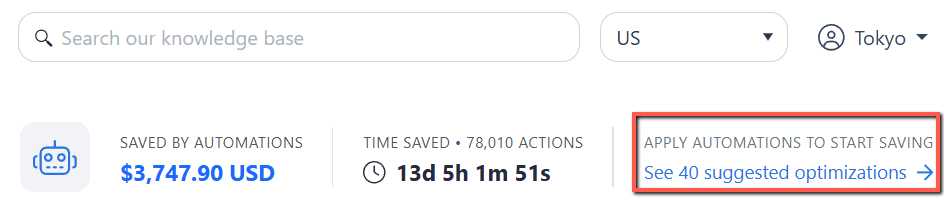
The banner adapts based on your automation savings and Scale Optimizer suggestions:
- If automations have generated savings: When more than 4 optimizations are suggested, the banner displays a link (e.g., See 40 suggested optimizations) to review the full list.
- If no savings have been generated: The banner prompts you to create an automation and launches a guided tour to help you set it up.
Enhancements
1. Data Pages: Persistent Columns, Filters, and Sort Order
Scale Insights now automatically saves your column configuration, filters, and sort order on data pages, so you can return to your preferred view without having to set them up again.
Your settings are retained when you refresh the page or navigate elsewhere and return.
What's new:
- Persistent filters: Your selected filters remain applied when you revisit a page.
- Saved sort order: Your chosen sorting preferences are retained.
- Custom column arrangement: Rearrange columns to prioritize the metrics you want to see first. Your preferred column order is saved as well.
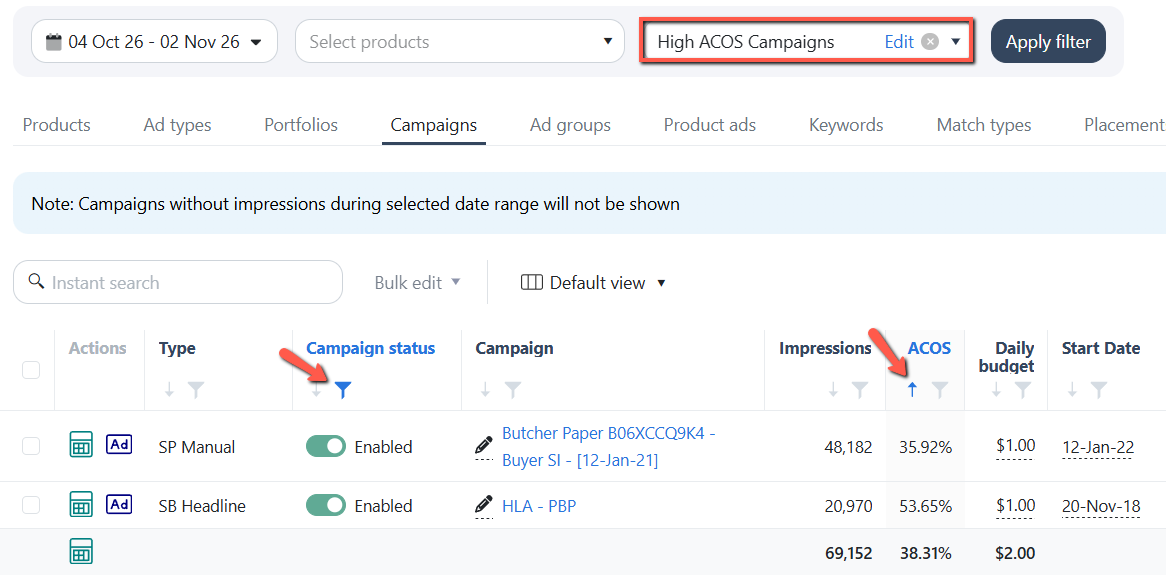
Note: Saved views are stored locally on your computer and maintained separately for each Scale Insights account.
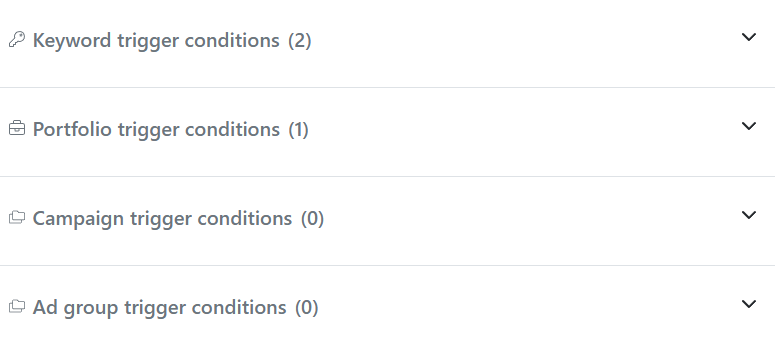
2. Bidding Rule: Vertical Trigger Conditions Layout
The Bidding Rule create and edit pages now display all trigger conditions in a single, vertically stacked layout instead of separate tabs, making it easier to review and manage conditions in one place.
Conditions are organized into four sections: Keyword, Portfolio, Campaign, and Ad Group, with each section showing the number of configured conditions.
Expand any section to view or edit its conditions.
Navigation: Automations > Bidding Rule