Specific Ad Groups lets you select the ad groups that will provide search terms for a rule.
This option is available for both Negative Rules and Import Rules.
Depending on the rule type, the selected search terms are either added as negative targets or imported as new targets.
This option is useful when you want a rule to use search terms from a specific set of ad groups rather than a broader group of campaigns or products.
When to use Specific Ad Groups
Use Specific Ad Groups when you want more control over which ad groups contribute search terms to a rule.
Common scenarios include:
Focusing on a specific product or product variation
Applying a rule to selected ad groups within a campaign
Using search terms from selected high-spend or high-volume ad groups
Applying different search-term logic to different product groups
Selecting ad groups that are not linked to the ASIN you are working with
Watch the quick walkthrough to learn how to select and manage specific ad groups as a search terms source.
How to select specific ad groups
Open a Negative Rule or Import Rule create/edit page.
In the Search Terms Source, select Specific Ad Groups.
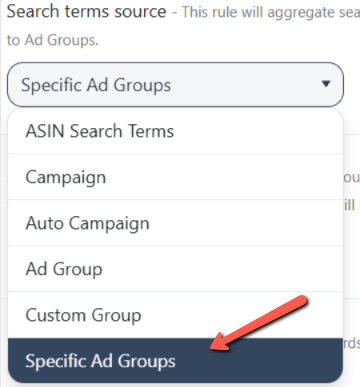
Click Select ad groups (0).

Use the available filters to narrow the ad group list by Product or Ad Type.
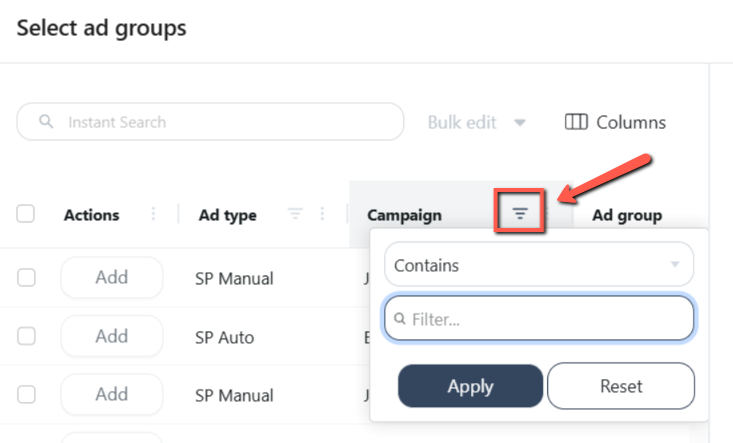
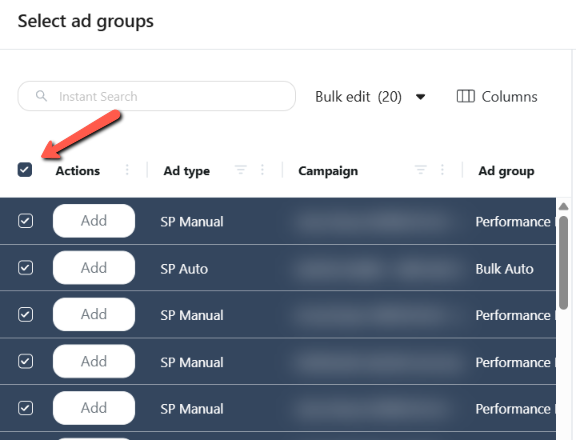
Select the ad groups you want to use as the search terms source. Add rows individually or use bulk edit to select multiple ad groups.
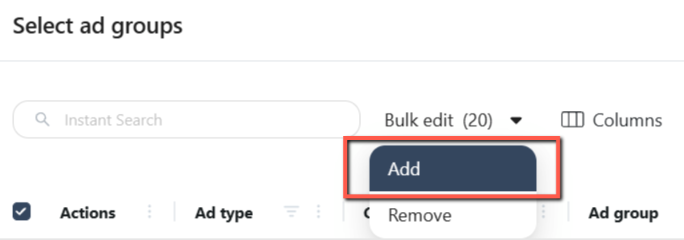
Under Bulk Edit, click Add.
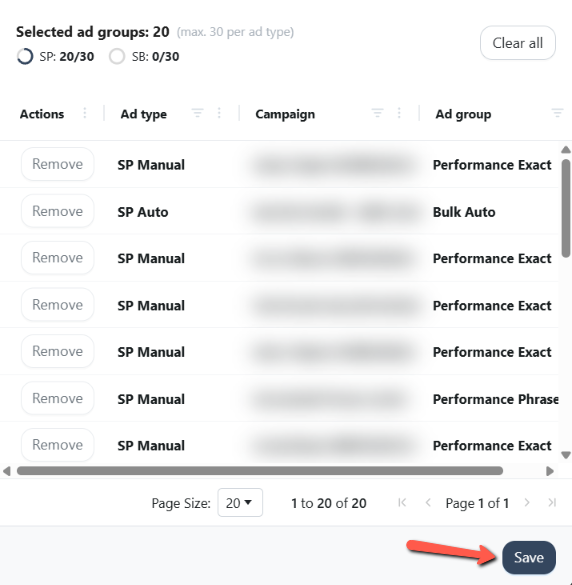
Review the summary panel to see your selections for each ad type, and click Save.
Continue configuring the rule and save it.
Tip
If your account has many ad groups, apply the Campaign or Ad Type filter first to narrow the list.
You can also configure the visible columns to review ad group performance data, such as Spend, Sales, Clicks, and Orders, before making your selections.
Negative Rule example
Suppose you have separate ad groups for several products. Search terms from one product are generating irrelevant traffic, while the same search terms are not an issue for your other products.
Create a Negative Rule and select only the relevant ad groups as the search terms source.
The rule can then evaluate search terms from those selected ad groups without including search terms from unrelated ad groups.
You can also select an ad group that is not linked to the ASIN, giving you more flexibility when the search-term source does not match the product associated with the rule.
Import Rule example
Suppose you have several ad groups generating search terms that you want to use as the source for an Import Rule.
Instead of using search terms from a broader set of campaigns, select only the relevant ad groups.
For example, you may want to collect search terms from specific research-focused ad groups and import qualifying terms into another ad group. With Specific Ad Groups, you can select those source ad groups directly, even when they are not linked to the same ASIN.
This gives you more control over which ad groups contribute search terms to the import process.
Selection limit
You can select up to 60 ad groups in total:
Up to 30 Sponsored Products (SP) ad groups
Up to 30 Sponsored Brands (SB) ad groups
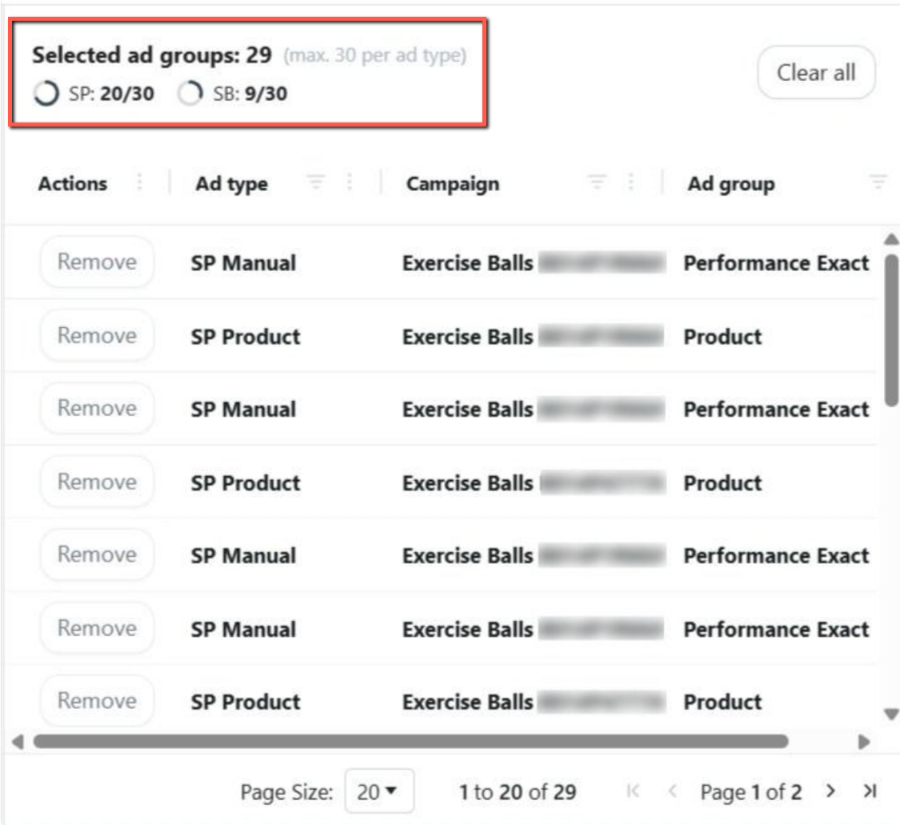
The summary panel shows your current selections by ad type, helping you keep track of the available limit as you select ad groups.
Specific Ad Groups vs. Custom Group
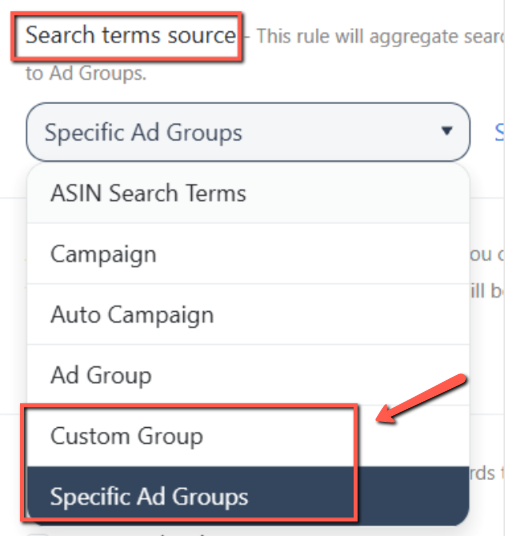
Both options let you control which ad groups are used as a search terms source, but they work differently.
Specific Ad Groups | Custom Group | |
|---|---|---|
Ad group selection | Select ad groups directly when configuring the rule | Assign ad groups to a Custom Group first |
ASIN requirement | Ad groups do not need to be linked to the ASIN | Ad groups are selected within an ASIN-based Custom Group |
Setup | Select source ad groups directly in the rule | Create and assign the Custom Group separately |
Best suited for | A specific set of ad groups for a particular rule | A reusable group of ad groups that you want to manage separately |
Custom Groups can combine source ad groups across campaigns to create a search-term pool, with the groups organized around an ASIN.
Learn more about Custom Group in this article: How to Create and Assign Custom Groups
If you already know which ad groups you want to use for a particular rule, Specific Ad Groups provides a direct way to make that selection. If you need an ASIN-based group that can be managed and reused separately, Custom Group may be more appropriate.
Key Considerations
You can select a maximum of 30 SP and 30 SB ad groups, for a total of 60 ad groups.
The selected ad groups do not need to be linked to the ASIN.
Only the ad groups you select are included as the search terms source.
The available selections depend on the Product and Ad Type filters you apply.